How to Sync Shopify Inventory From a Supplier Feed
Keep Shopify stock in step with your supplier's feed: pull a CSV or Excel feed from a URL, FTP, or SFTP, match by SKU or barcode, and run it on a schedule.
Simple Apps LLC
Simple Inventory
10 min read
To sync Shopify inventory from a supplier feed, point a tool at the feed (a hosted URL, or an FTP or SFTP server), match its rows to your products by SKU, and run it on a schedule. Shopify’s native CSV import is built for manual bulk edits using files you export from your store. A supplier feed is a different job: it arrives on its own schedule and is keyed to the supplier’s SKUs, so it runs through an app or a custom integration rather than the native import.
If you update stock by hand every so often, and no supplier is sending you a feed, the native import is good enough and you can stop reading here: export from Products → Inventory, edit the On hand (new) column, and re-import. That file came out of Shopify, so its handles already line up with your products and the import works. Shopify’s docs cover it fine. This post is about the other situation: a supplier sends you a stock file on a regular basis, keyed to their SKUs, and you want Shopify to stay current without re-uploading it by hand every time.
Pull a supplier feed from a URL, FTP, or SFTP, match it to your products by SKU, and run it on a schedule. See how Simple Inventory does it.
What the native import does well, and where a feed differs
The native import is built around one workflow: you export your products, edit them, and upload the file back, by hand. It does that well. A supplier feed is a different shape of work in two ways.
First, timing. A feed shows up on the supplier’s schedule, often a fresh file every morning. The native import runs when you upload it, which is exactly right for an edit you’re making on purpose. It just means there’s no built-in way to point Shopify at an SFTP folder or a URL and have it check on its own.
Second, the match key. On import, Shopify identifies each row by the product handle, the variant’s option values, and the location. That makes sense, because the file came out of your store and already carries those handles. Per Shopify’s documentation, the SKU column “isn’t required” and “doesn’t update the SKU of the variant.” A supplier feed, though, is almost always keyed on SKU with no Shopify handle in it, so lining it up with your catalog needs a tool that matches on SKU.
Neither of these is a shortcoming. They’re the difference between a manual edit and an automated feed, and that difference is exactly what a feed-sync tool is for.
Which approach fits you
Three ways to update Shopify stock, each suited to a different job.
| Approach | Runs on a schedule? | Matches on SKU? | Best for |
|---|---|---|---|
| Manual edit in admin | No, by hand | You type the numbers | A handful of one-off changes |
| Shopify CSV import | No, you upload each file | Matches on handle | Occasional bulk edits from a Shopify export |
| Feed-sync app | Yes | Yes | A recurring supplier feed keyed on SKU |
If your situation is the bottom row, the rest of this post is for you.
One thing to settle before you invest the setup time: a feed sync keeps existing products stocked. Simple Inventory updates variants that are already in your store and doesn’t create new ones from a feed. If your feed is mostly brand-new SKUs, as a dropshipper’s often is, you’ll add those products to Shopify first, and the feed keeps them stocked from then on.
What a real feed sync actually needs
Before you pick a tool, here’s the checklist. A supplier-feed sync has to:
- Read the feed where it actually lives: a hosted URL (an HTTPS link to the CSV or Excel file), or an FTP or SFTP server your supplier writes to. The tool fetches the file itself, with no manual upload in the loop.
- Match on SKU (or barcode), because that’s what’s in the file. A supplier feed has no Shopify handles in it, so SKU is the key that lines the two up.
- Run on a schedule, from every few minutes to once a day, so the latest file applies itself.
- Tell you when a row fails instead of skipping it silently.
- Do something sane with a SKU that’s in the feed but not yet in your store.
Two of those deserve a straight answer, because automation makes a vague one expensive.
Say a SKU shows up in the feed that isn’t in your store yet. Simple Inventory skips it and tells you: each run reports how many rows didn’t match and shows a sample of them, so a typo or a brand-new product is visible rather than swallowed. As noted above, it updates existing variants and won’t create the product for you.
Now say the same SKU appears in two of your supplier feeds. Each sync sets the quantity to the number in the file rather than adding to what’s already there, so for one SKU at one location, whichever feed runs last is the value that sticks. If your suppliers stock different things, point each feed at its own Shopify location and they never collide. If they really do both supply the same SKU into the same location, pick which feed is the source of truth, because the later run overwrites the earlier one.
Setting up a feed sync with Simple Inventory
This is the job Simple Inventory is built for. The setup is short.
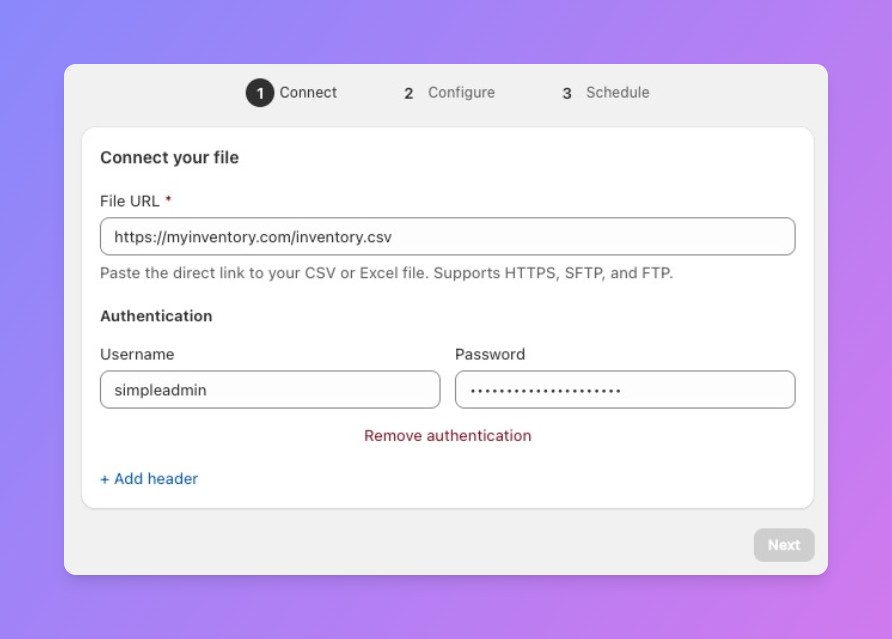
1. Point it at your feed
Paste the address where your supplier’s file lives. That’s an HTTPS link to a hosted CSV or Excel file, or an FTP or SFTP address with a username and password. The tool reads the file from there on its own, so there’s nothing to upload by hand. Whichever your supplier publishes to, that’s the source.
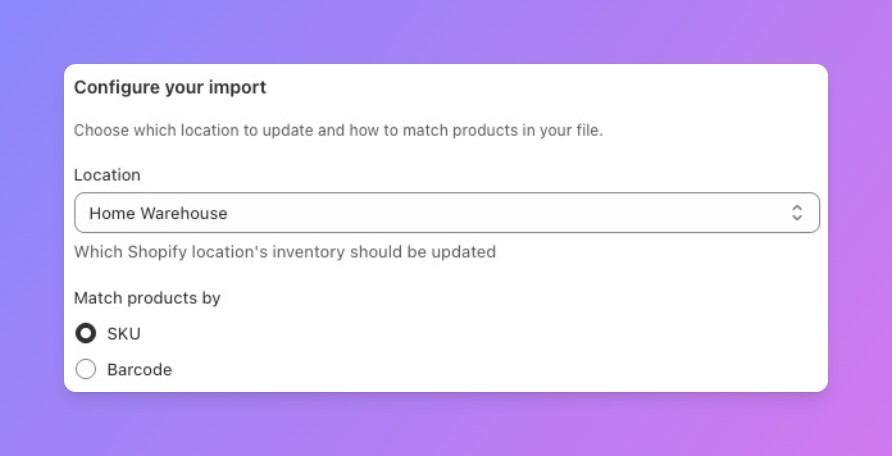
2. Choose the location and map your columns
This step does two jobs. First, pick the Shopify location whose stock this feed controls, your warehouse or store. Then choose whether to match products by SKU or barcode.
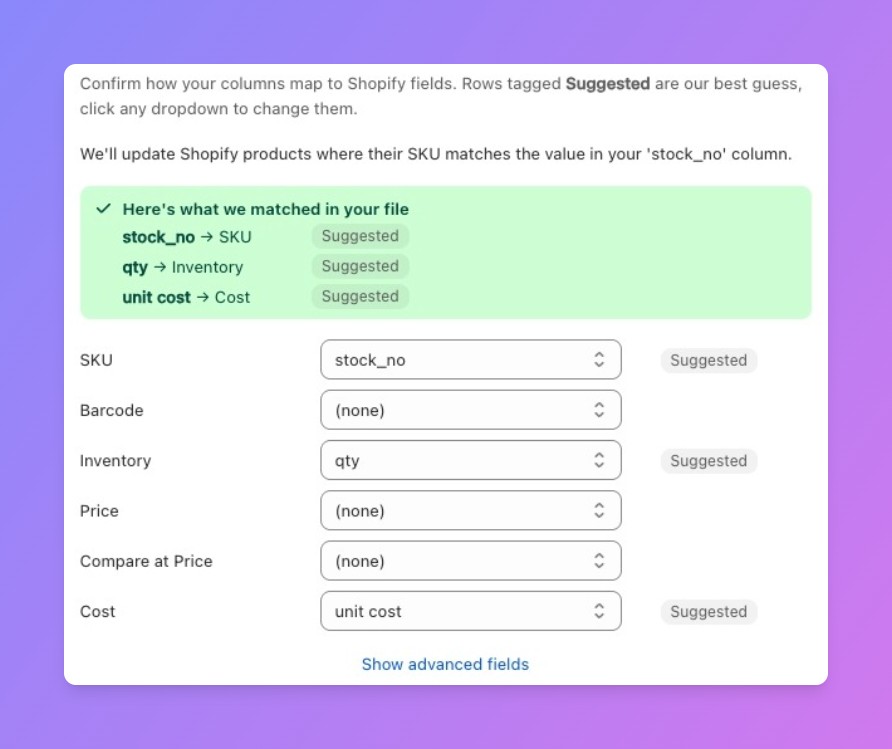
Then you map the columns. Your supplier’s file and Shopify almost never use the same names for the same thing. Your file might call the product code stock_no and the count qty. Shopify calls those SKU and Inventory. Mapping is simply telling Simple Inventory which of your columns is which: “my stock_no column is the SKU,” “my qty column is the quantity.” Simple Inventory reads your file’s header row and fills this in for you (the rows marked Suggested); you glance at each one and either keep it or pick a different column from the dropdown.
Once the columns are matched, the rule is short: for every row in the file, Simple Inventory finds the Shopify product whose SKU equals the value in your SKU column, and sets that product’s stock to the number in your quantity column. Quantity is all you need for a stock sync, but if your feed also carries price or cost, those have their own rows you can map too. Before you run it, Simple Inventory checks a few sample rows and tells you how many already match a SKU in your catalog, so a wrong column gets caught up front instead of after a bad sync.
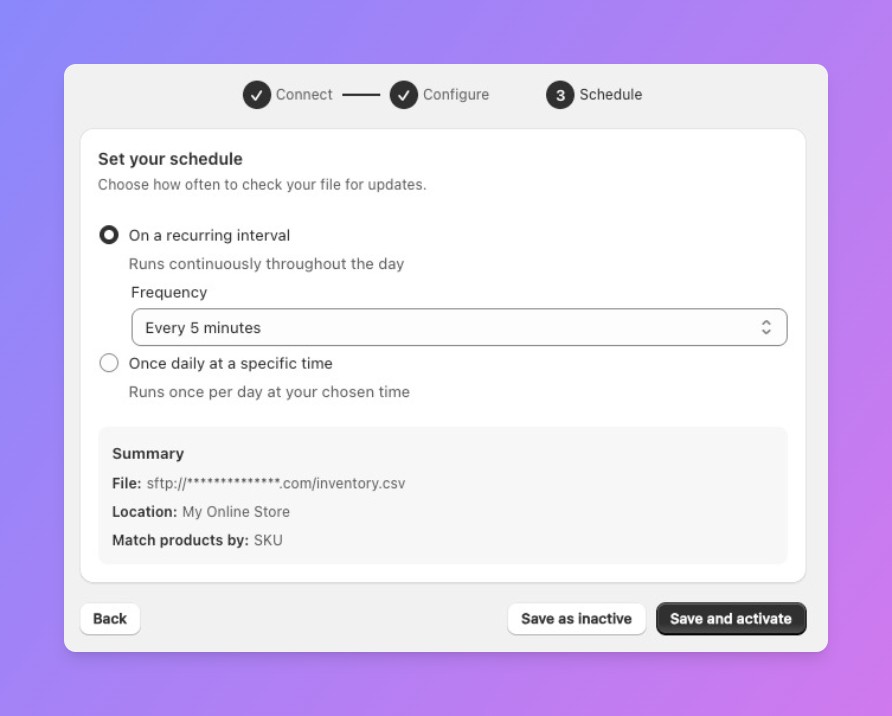
3. Set the schedule
You get two scheduling modes: run it on a recurring interval, from every 5 minutes up to every 24 hours (how often depends on your plan), or once a day at a specific time you pick. If your supplier posts a fresh file at 6am, schedule it for shortly after, and your stock is current before you start your day. A summary of the file, location, and match key sits right there, so you can confirm everything before you activate.
4. Let it run
Save it, and it runs on its own from then on. Every run tells you what it did: how many products it updated, how many rows it couldn’t match to a SKU, and a few examples of those. A typo or a not-yet-created product shows up plainly instead of vanishing.
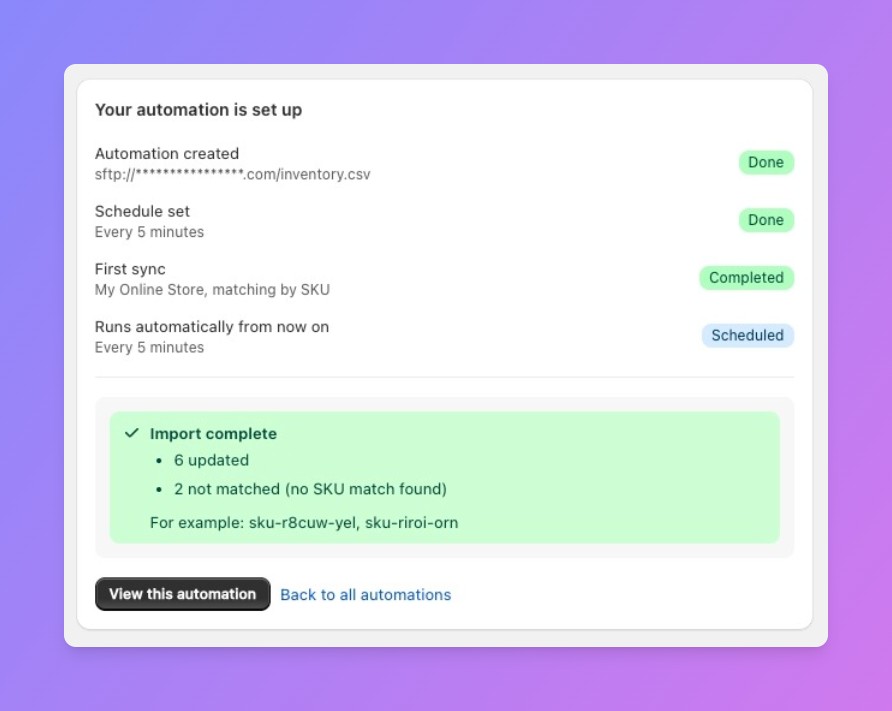
Simple Inventory is built to do this one job well. It pulls your supplier’s feed from a URL, FTP, or SFTP, matches each row to your products by SKU or barcode, and updates stock, price, compare-at, and cost together in one scheduled run, as often as every 5 minutes. There’s no multichannel platform to configure and no extra sales channels to manage, just the feed, your store, and a schedule. It’s a Built for Shopify app.
Stop hand-stitching supplier files into Shopify. Pull the feed by SKU, on your schedule. Try Simple Inventory on your catalog.
FAQ
Can Shopify automatically update inventory from a supplier feed?
Not through the native import, and that’s by design. The CSV import is built for manual bulk edits using files exported from your store. A scheduled, SKU-keyed supplier feed is a different job, so it runs through an app or a custom integration.
My feed only has SKUs and quantities. Can Shopify use it?
The native import matches on product handle, so a bare SKU-and-quantity file has no handles for it to line up against. Simple Inventory matches on the SKU itself, so that kind of file maps straight to your catalog.
How often can a feed sync run?
That depends on the tool, but hourly or daily is typical. Match it to how often your supplier actually updates the file. Syncing every hour against a file that changes once a day just wastes runs.
SFTP or a URL, which should I use?
Whatever your supplier gives you. SFTP is common for warehouses and distributors that push files; a hosted URL is common when the supplier publishes a feed you pull. Either works.
What about products in the feed that aren’t in my store yet?
A feed sync updates existing variants. It won’t create new products for you, so list new items first, then let the feed maintain their stock.
Will my supplier’s feed work with Simple Inventory?
In most cases, yes. The feed needs to be a CSV or Excel file reachable by URL, FTP, or SFTP, with a column for the SKU (or barcode) and a column for the quantity. If you’re not sure yours fits, email a sample to [email protected] and we’ll tell you whether it’ll work, or point you in the right direction if it won’t.
Bottom line
The whole point is to take the morning supplier file off your plate. Once it’s set up, Simple Inventory pulls the feed from a URL, FTP, or SFTP, matches it to your catalog by SKU or barcode, and keeps your stock current on the schedule you choose, with no manual re-uploads.